

 Clouds Movement
Step 1
Save on your computer the next picture:

Step 2
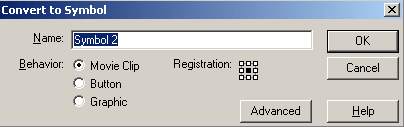
Open the Macromedia Flash MX and create a new document with the size 345x231 pixels. Import in the stage the picture “clouds.jpg”. For this, select File > Import, select the image and click “Open”. Now, on the layer “layer 1” you have the picture with the clouds. In the stage, right click on the picture and select Convert to Symbol. In the new window which appears select “Movie clip”:
Step 3
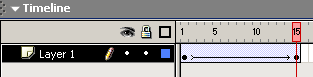
Double click on the new movie clip, in the main scene, to edit the movie. In the Timeline Tab, on the position 15, right click and choose Insert Frame. On the frame 10, right click and select Create Tween Motion. Select the frame 15 again, then right click and choose Insert Keyframe:
Step 4
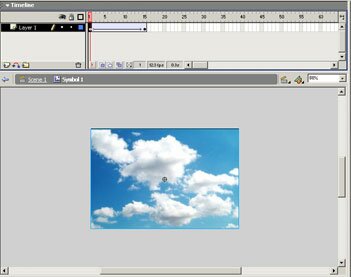
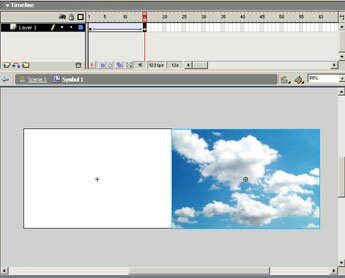
On the frame 15, in the main stage, move the picture in the new position like here. Initial position:
Final position:
Step 5
Create a new layer. To do this click on the icon “Insert Layer” in the Timeline Tab:

Step 6
Open the “Library Window”, if that is not open. Use CTRL+L to open the library. Select the “clouds.jpg” and drag it to the main stage. Make sure you are on the layer “layer 2”. Move the new picture in the position like below and flip it horizontal. To flip the picture horizontal select Modify > Transform > Flip Horizontal.
This is the initial position of this picture:
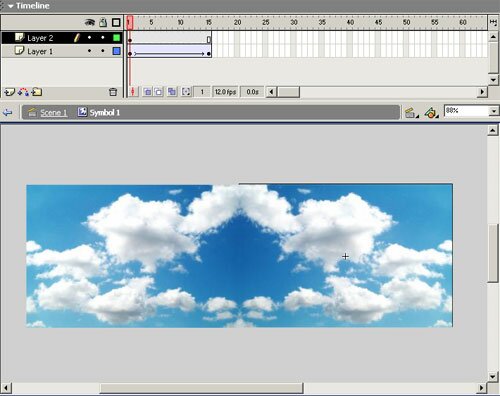
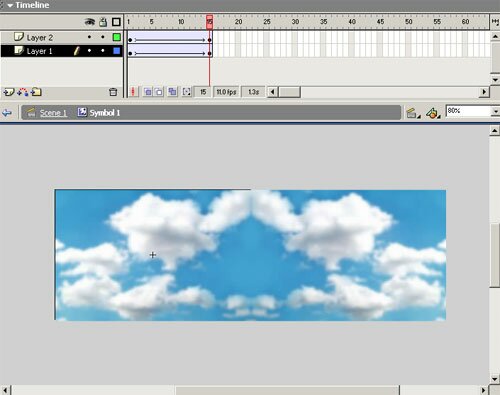
Like you did on the step 3 create another tween movie this time on the layer “layer 2”. The final position should be something like this:
Step 7
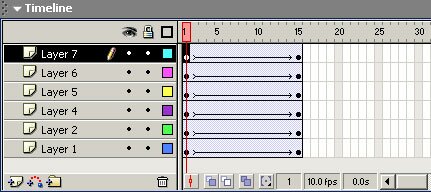
Repeat the step 6 for another 4 times (each time you must flip horizontal the picture which you’ve imported from the library; then move it in the position like in the step 4; you must have an initial position on the frame 1 and the final position on the frame 15). More attention to the details and the result should be like this:
Set the frame rate to 11 fps and the results (you can obtain a result better like me with a nice photo and more attention):
Filed under Flash Tutorials